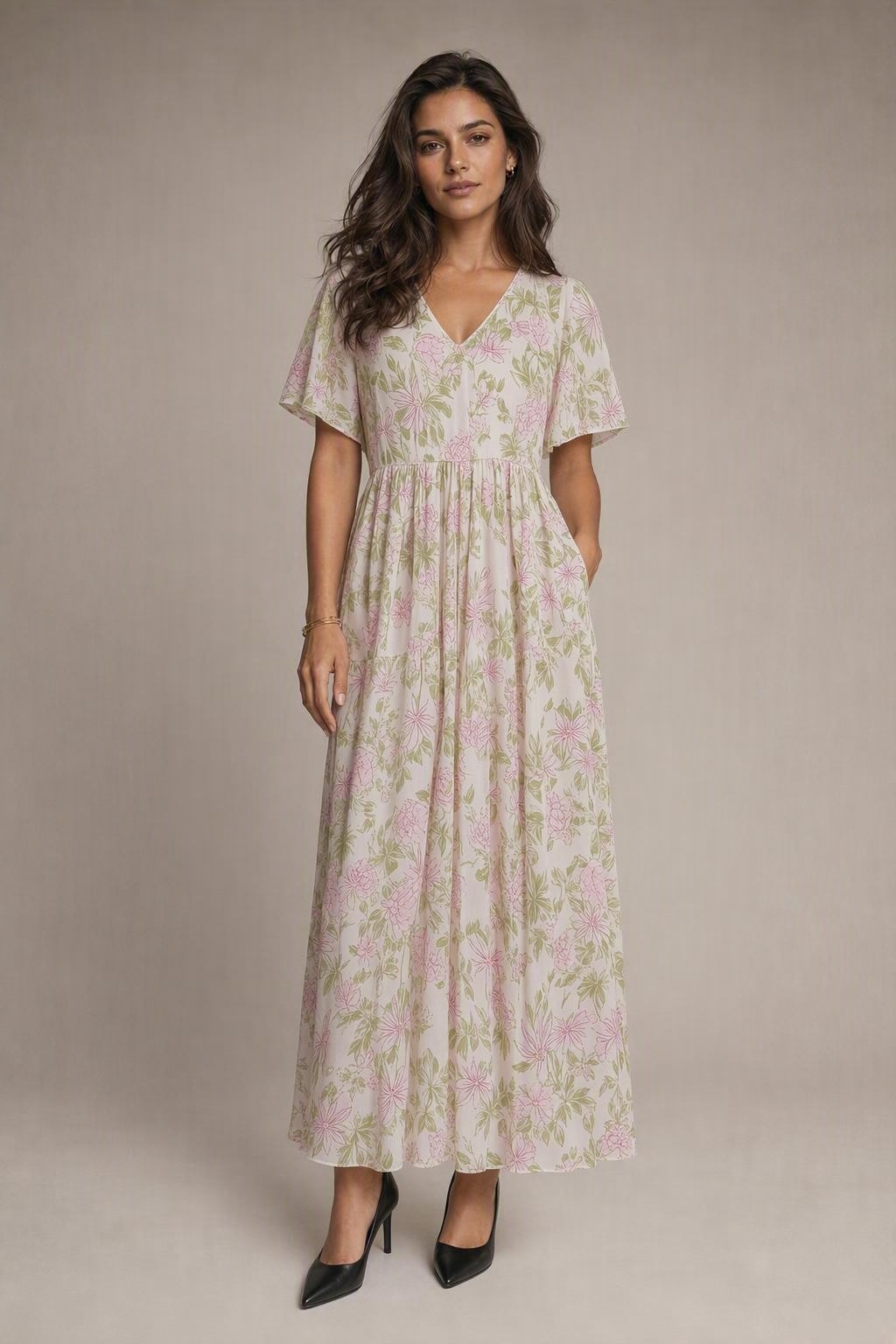
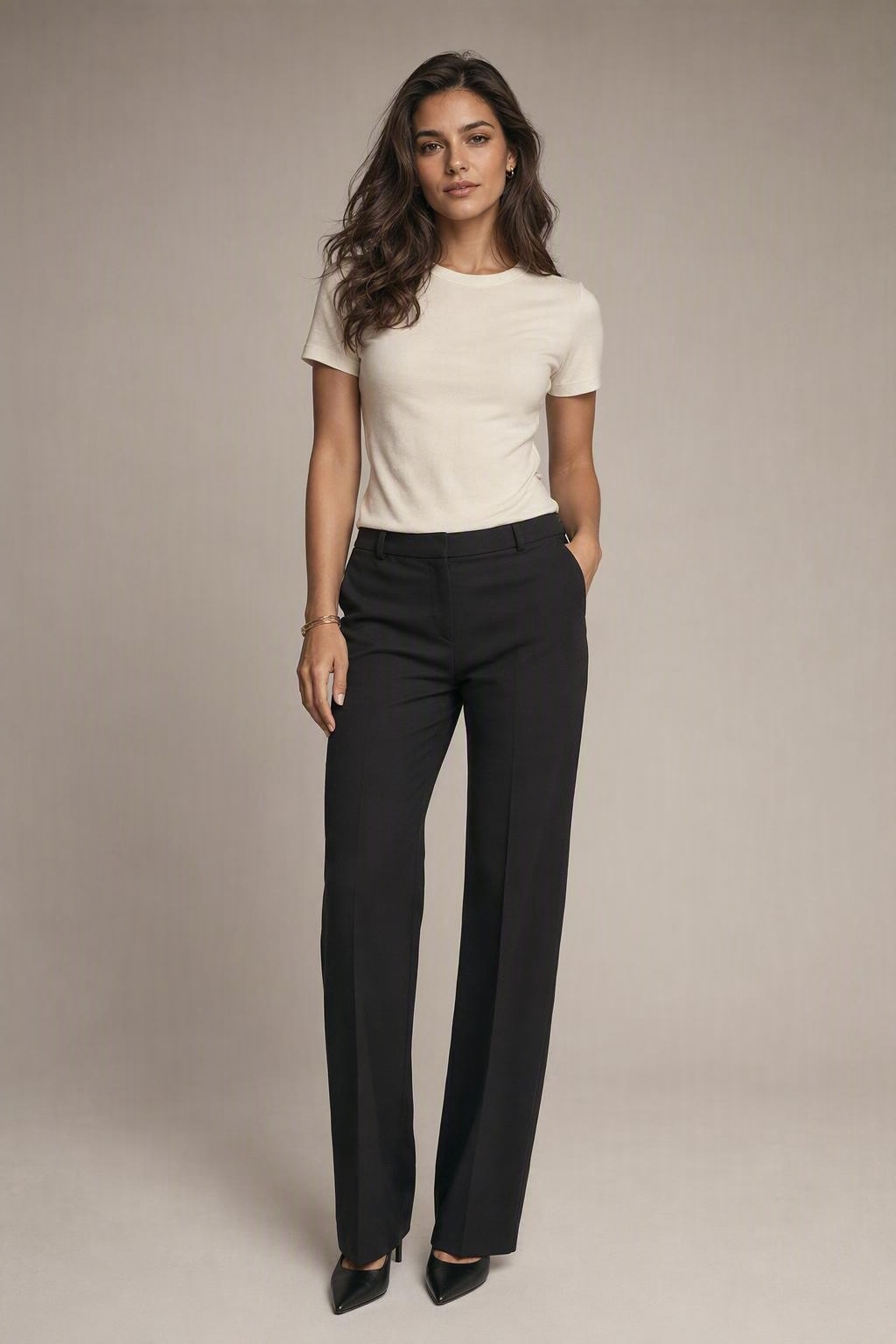
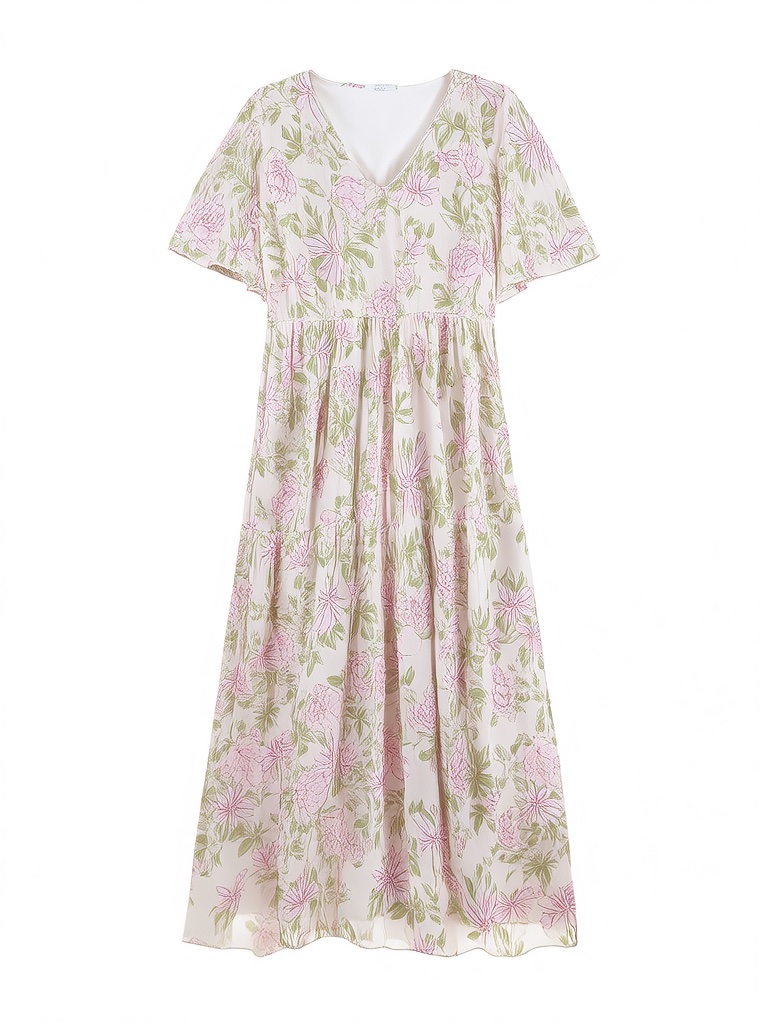
Create a new look from a photo
Sometimes you have a look in mind but cannot picture yourself wearing it. A dress on a product page, a jacket on a hanger, or a shirt in your wardrobe can be a starting point for a different style. DressMeAI combines your person photo with a clothing reference to create a visual outfit preview.
The focus is your new image: how a different garment changes the overall look of your photo. You supply the clothing direction rather than asking the AI to invent an outfit from text. The result can help you explore an idea before deciding whether you want to try that style in real life.
How the AI outfit generator works
Upload your photo first. You do not need a clothing image ready at this stage. Click the generation button, sign in to your account, and choose a subscription if you have no remaining try-ons. After subscribing, you return to the outfit selection step with your person photo restored.
Choose a garment from the collection or upload your own clothing reference. Once both inputs are ready, click the final generation button to create the look. Selecting clothing does not spend a try-on; the generation step does. If your account already has remaining try-ons, you can proceed to clothing selection without making another purchase.
Explore styles with ready-to-try clothing
The clothing collection is useful when you want a new look but do not have a specific item to upload. Browse the available dresses, shirts, sweaters, blazers, and outerwear, then choose a garment that interests you. The selection gives you concrete references instead of an empty prompt box.
Use the collection to explore a more formal jacket, a different dress, or a relaxed everyday top. You choose the garment after subscribing, and the AI places it in your photo. The collection is a set of clothing options, not a personalized styling recommendation based on your body, calendar, or shopping history.
Bring your own outfit reference
If you know what you want to wear, upload a clear picture of that garment. A product image, a neatly photographed item on a hanger, or clothing laid flat can provide a useful reference. Make sure the part you want to preview is visible and not hidden by unrelated objects.
This makes an AI outfit generator with pictures practical for exploring a particular idea. You control the clothing reference rather than accepting an unrelated generated design. Small details can still change in an AI image, so compare the result with the source photo before using it to represent a specific product.
Choose a look for an occasion
An upcoming event can give your experiment a clear purpose. You might want to preview a dress for an evening out, a blazer for a meeting, or a comfortable top for a weekend photo. Choose an available garment or upload a reference that fits the occasion you have in mind.
DressMeAI does not automatically decide what is appropriate for the weather or the venue. It helps you see the visual direction you selected on your own photo. Start with one clothing idea, review the preview, and use another available try-on if you want to explore a different option.
Prepare pictures for a useful preview
Choose a sharp, well-lit person photo with the area you want to dress clearly visible. A front-facing pose is a useful starting point. If the image hides your torso behind a bag or cuts off the garment area, the generated outfit may be harder to assess.
For the clothing picture, show the garment clearly, including its color, shape, and main details. A simple background helps keep the reference understandable. Preview your selected inputs before generating. Better references give you a clearer starting point, although they cannot guarantee that the AI will preserve every print, fold, or body detail.
Review your new outfit image
Look at the result as a generated picture of a new style. Check the overall silhouette, color combination, and how the clothing appears beside your face and hair. Also inspect areas where the AI may have changed the reference, such as sleeves, patterns, hands, or the edges of the garment.
An outfit preview does not measure your body or confirm which size to buy. It cannot establish real fabric feel, tightness, or exact physical fit. If you are considering a purchase, also check the retailer’s size information and product photographs. The preview is one visual reference for your decision, not a substitute for those details.
Download a look and return to it later
When a generation finishes, you can download the result and keep the new outfit image. Completed results are saved in your account history, so you can return to a successful preview without relying only on the current browser tab. Subscription results are available without the preview watermark.
Use the image as personal inspiration or as an AI-created visual for a style idea. Keep the distinction clear if you share it: the image was generated from clothing references and may differ from the real item. Browsing or selecting clothes alone does not produce an image; generation starts after you confirm the prepared inputs.
Subscription plans for creating more looks
DressMeAI offers subscriptions for generating outfit previews. Basic costs $7.90 per month and includes 50 try-ons. Pro costs $15.90 per month and includes 200 try-ons. Unlimited costs $39.90 per month. Monthly and annual billing options are available on the pricing page, and you can cancel your subscription.
A generation uses an available try-on from your account. If generation fails, the try-on is returned so you can try again. This is a returned usage credit, not an automatic cash refund. Your subscription choice and its included allowance are shown before checkout, so you can decide how many new looks you want to explore.